


VAG-COM Mods for D4 A8
Thread Starter
AudiWorld Member
Joined: Dec 2011
Posts: 278
Likes: 2
From: Northern VA
 VAG-COM Mods for D4 A8
To my surprise, FedEx delivered my HEX-USB+CAN Interface from Ross-Tech today. That was fast service. I wasted no time in trying out some mods. If you are not a complete computer illiterate and can follow simple directions, you can mod your A8. In the following posts, I will outline what I did step by step with pictures, so who ever wants to try these mods can.
Thread Starter
AudiWorld Member
Joined: Dec 2011
Posts: 278
Likes: 2
From: Northern VA
LED DRL Wink Disable
This mod is to disable LED DRL from turning off on one side when turn signal is active.
WARNING - I DO NOT TAKE RESPONSIBILITY FOR ANY MODIFICATIONS YOU MAKE TO YOUR OWN VEHICLE. PLEASE PROCEED AT YOUR OWN RISK.
From the main VCDS Menu,
Select Select Control Module
Select 09-Cent. Elect.
Select Coding - 07
Select Long Coding Helper
Select the 4th box on line 3).
You will see a screen like this.
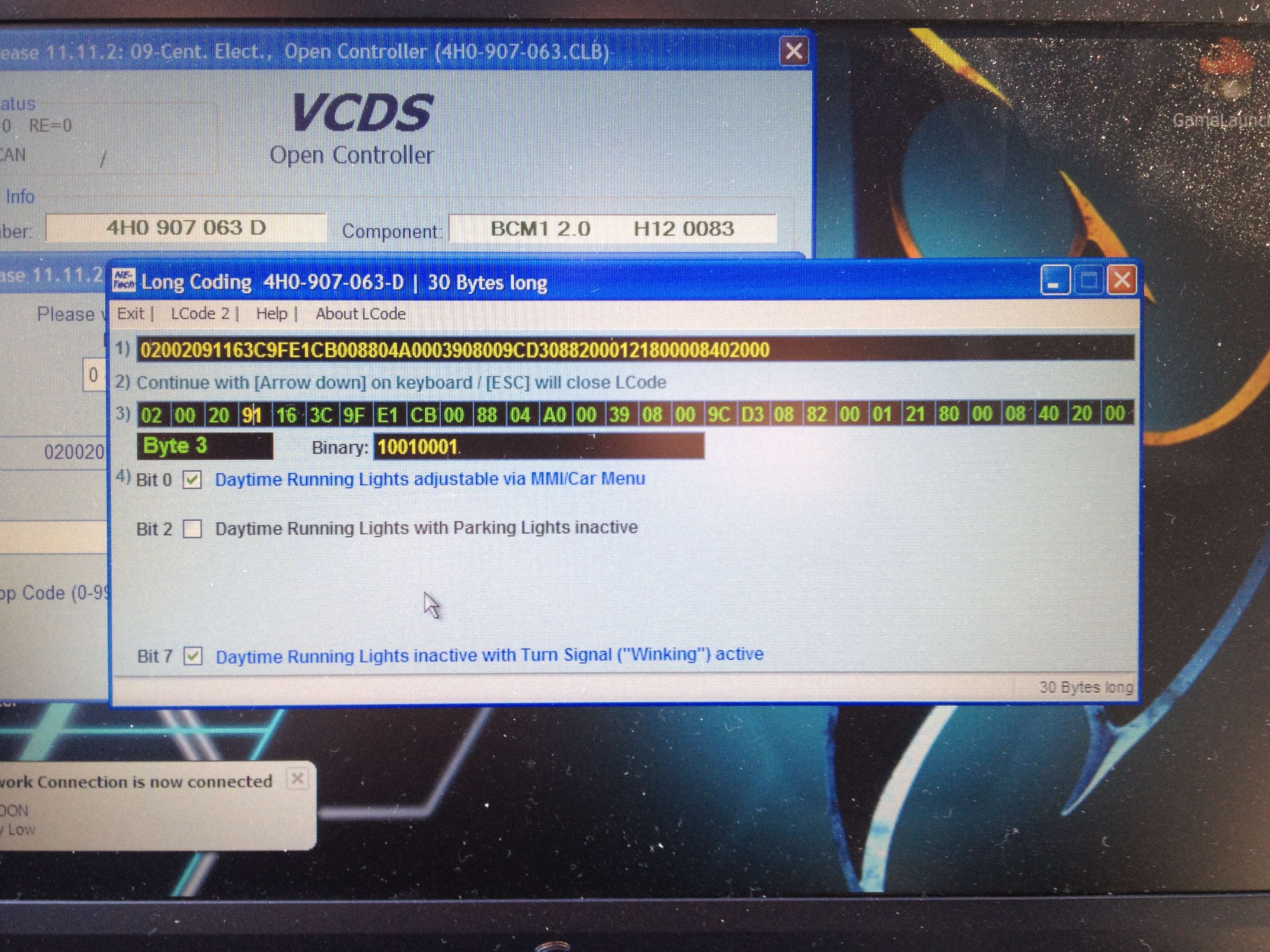
The box below it will read Byte 3.
Uncheck Bit 7 - Daytime Running Lights inactive with Turn Signal ("Winking") active
Click Exit at the top.
You will then see a screen like this.
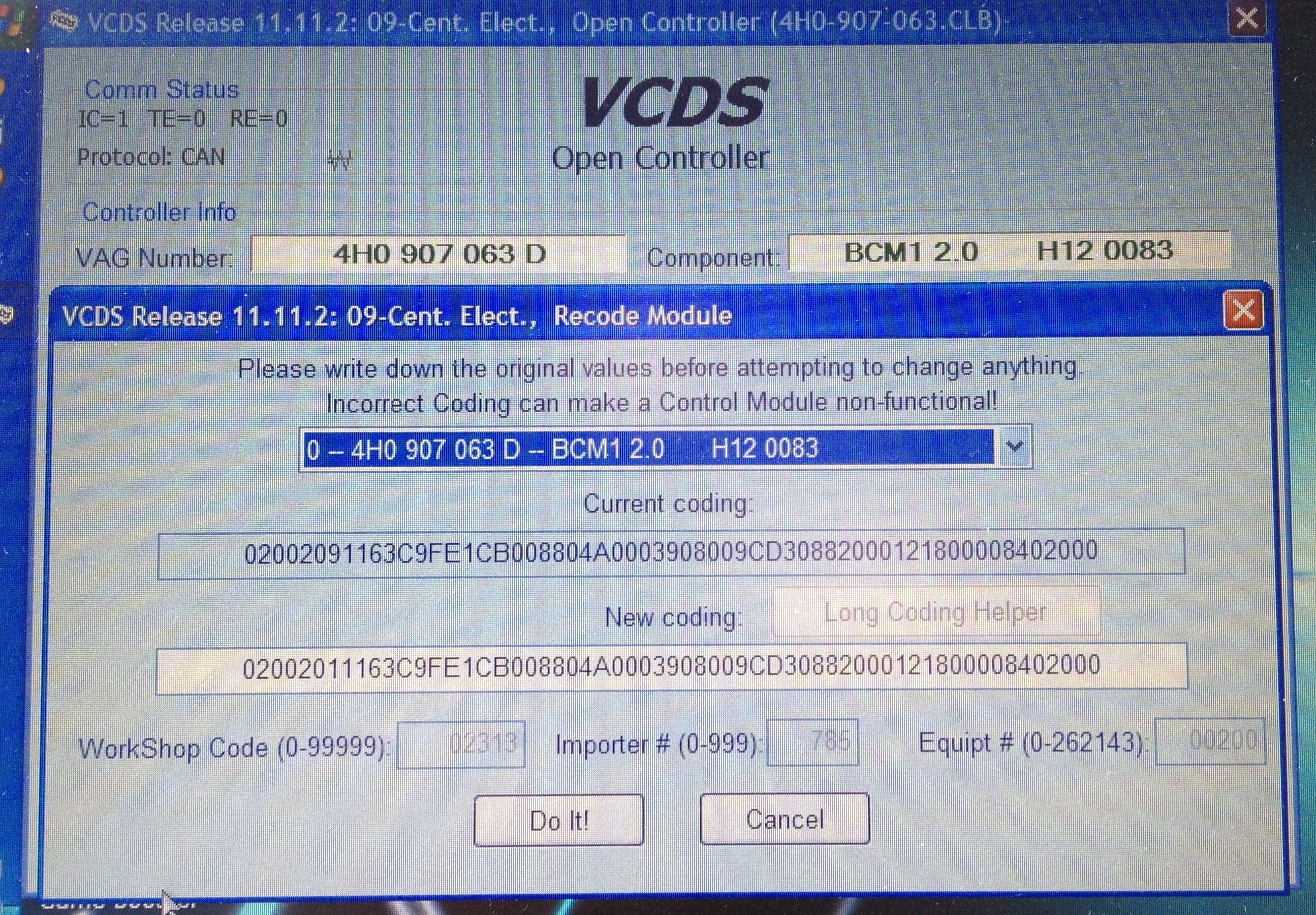
Click "Do It!"
That is all there is to it. Now the DRL will remain on even when the turn signal is active on that side.
WARNING - I DO NOT TAKE RESPONSIBILITY FOR ANY MODIFICATIONS YOU MAKE TO YOUR OWN VEHICLE. PLEASE PROCEED AT YOUR OWN RISK.
From the main VCDS Menu,
Select Select Control Module
Select 09-Cent. Elect.
Select Coding - 07
Select Long Coding Helper
Select the 4th box on line 3).
You will see a screen like this.
The box below it will read Byte 3.
Uncheck Bit 7 - Daytime Running Lights inactive with Turn Signal ("Winking") active
Click Exit at the top.
You will then see a screen like this.
Click "Do It!"
That is all there is to it. Now the DRL will remain on even when the turn signal is active on that side.
Last edited by xradman; Jan 28, 2012 at 01:07 PM.
Thread Starter
AudiWorld Member
Joined: Dec 2011
Posts: 278
Likes: 2
From: Northern VA
Enable Needle Sweep
This mod will enable "Needle Sweep" feature. When you start the car, both the speedometer and techometer needle will sweep through the entire range.
WARNING - I DO NOT TAKE RESPONSIBILITY FOR ANY MODIFICATIONS YOU MAKE TO YOUR OWN VEHICLE. PLEASE PROCEED AT YOUR OWN RISK.
From the main VCDS Menu,
Select Select Control Module
Select 17-Instruments
Select Coding - 07
Select Long Coding Helper
You will see a screen like this.
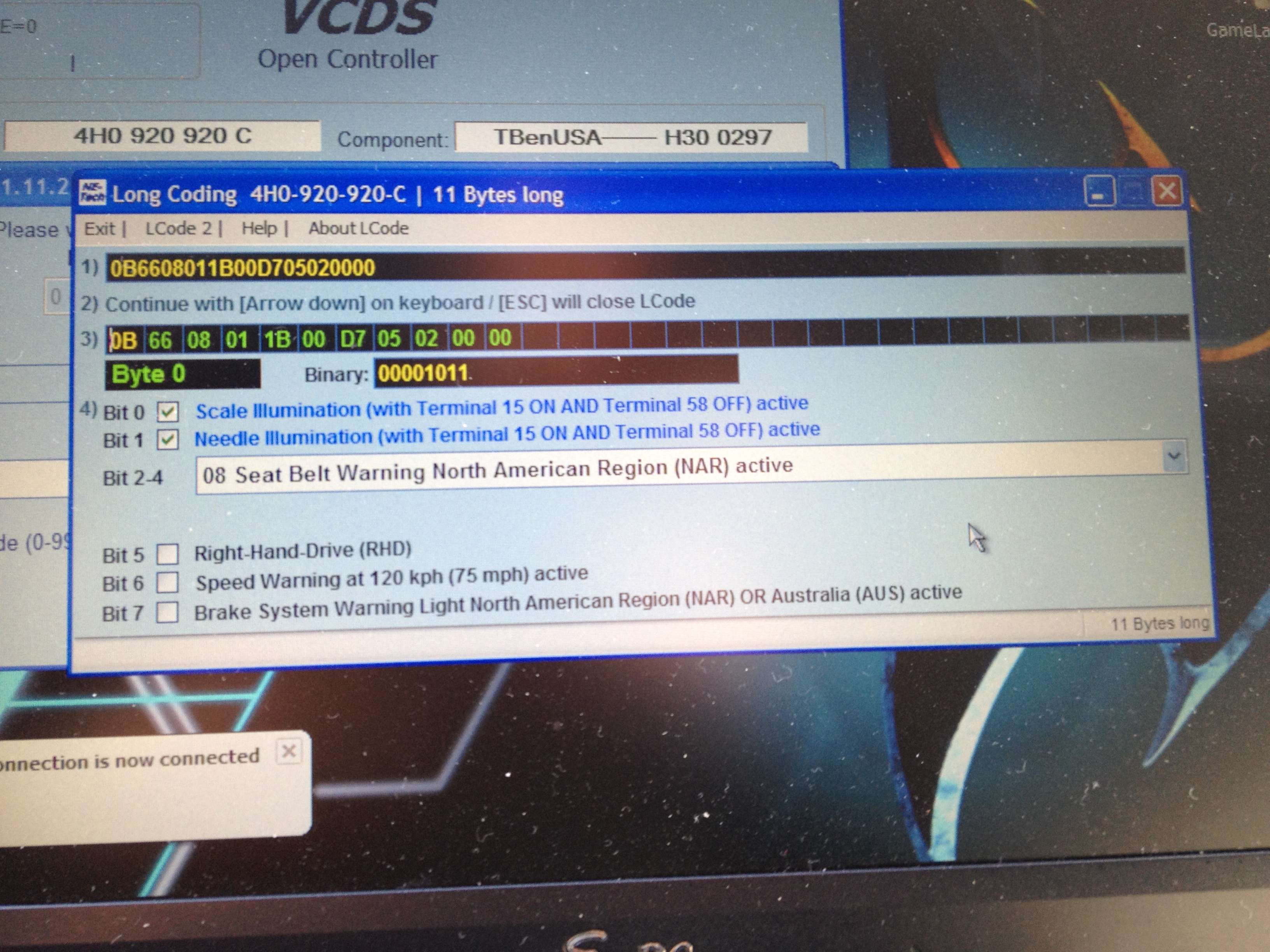
Select 2nd box on line 3). The Box below it will read Byte 1.
Check the Box for "Gauge Test/Needle Sweep active"
Click Exit at the top.
You will then see a screen like this.
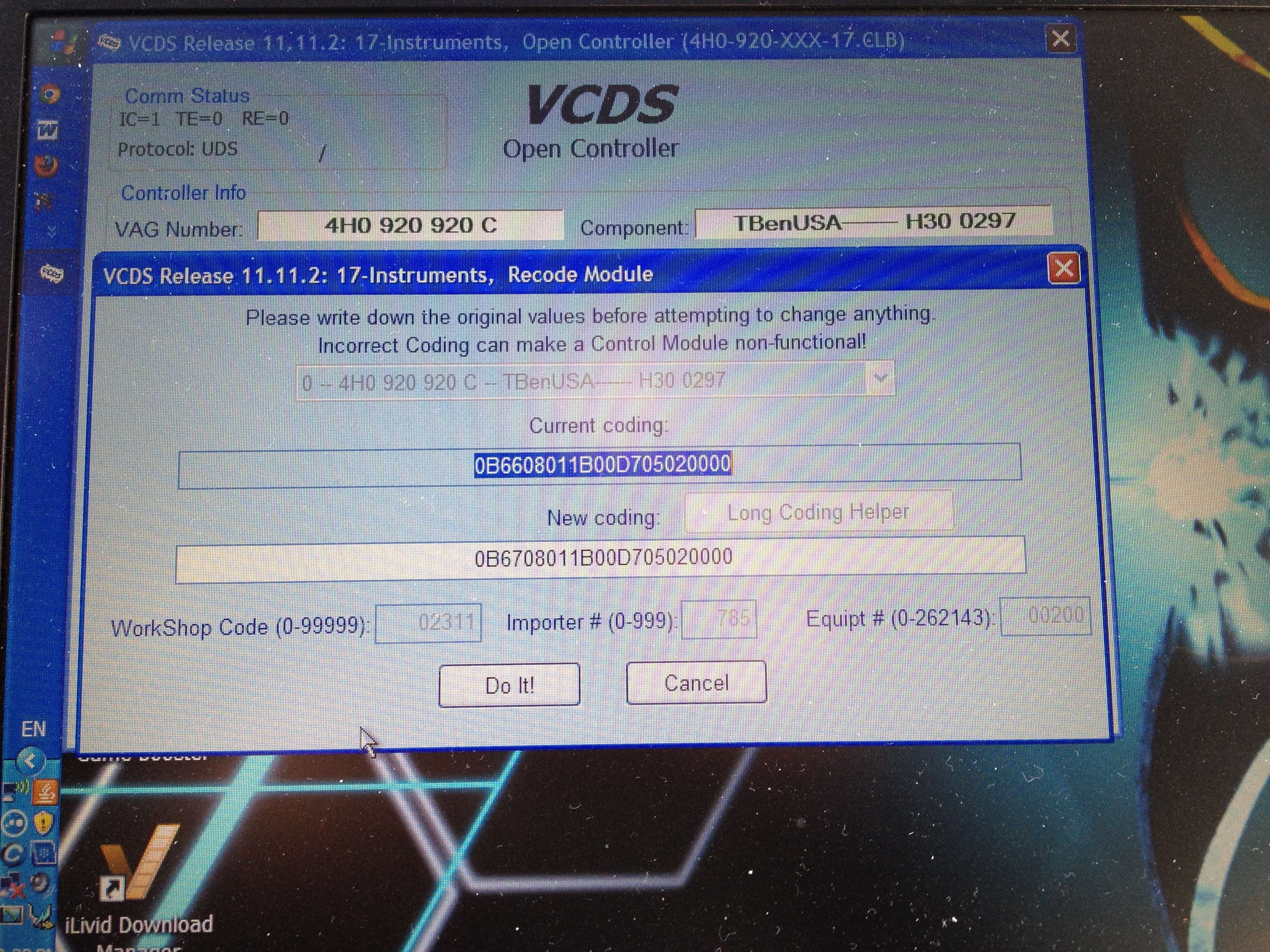
Click "Do It!"
That is all there is to it. Now you have need sweep.
You might also notice the Bit 2-4 on the Long Coding screen is for Seat Belt Warning North American Region. There are multiple options in the drop down list.
WARNING - I DO NOT TAKE RESPONSIBILITY FOR ANY MODIFICATIONS YOU MAKE TO YOUR OWN VEHICLE. PLEASE PROCEED AT YOUR OWN RISK.
From the main VCDS Menu,
Select Select Control Module
Select 17-Instruments
Select Coding - 07
Select Long Coding Helper
You will see a screen like this.
Select 2nd box on line 3). The Box below it will read Byte 1.
Check the Box for "Gauge Test/Needle Sweep active"
Click Exit at the top.
You will then see a screen like this.
Click "Do It!"
That is all there is to it. Now you have need sweep.
You might also notice the Bit 2-4 on the Long Coding screen is for Seat Belt Warning North American Region. There are multiple options in the drop down list.
Last edited by xradman; Jan 28, 2012 at 01:12 PM.
Thread Starter
AudiWorld Member
Joined: Dec 2011
Posts: 278
Likes: 2
From: Northern VA
Enable Video in Motion (VIM)
This mod will allow video to play on your main MMI screen even when the vehicle is in motion.
WARNING - I DO NOT TAKE RESPONSIBILITY FOR ANY MODIFICATIONS YOU MAKE TO YOUR OWN VEHICLE. PLEASE PROCEED AT YOUR OWN RISK.
The procedure is identical to what was outlined in the Trick77.com page for MMI 3G.
VIM for MMI 3G as posted on trick77.com
This mod is slightly more complicated then the other 2 mods listed earlier, but still pretty straight forward.
From the main VCDS Menu,
Select Select Control Module
Select 5F-Information Electr. under the Electronics 2 Tab at the top
Select Coding - Advanced ID - 1A
You will see a screen like this. Make note of your Serial number under Advanced Identification.
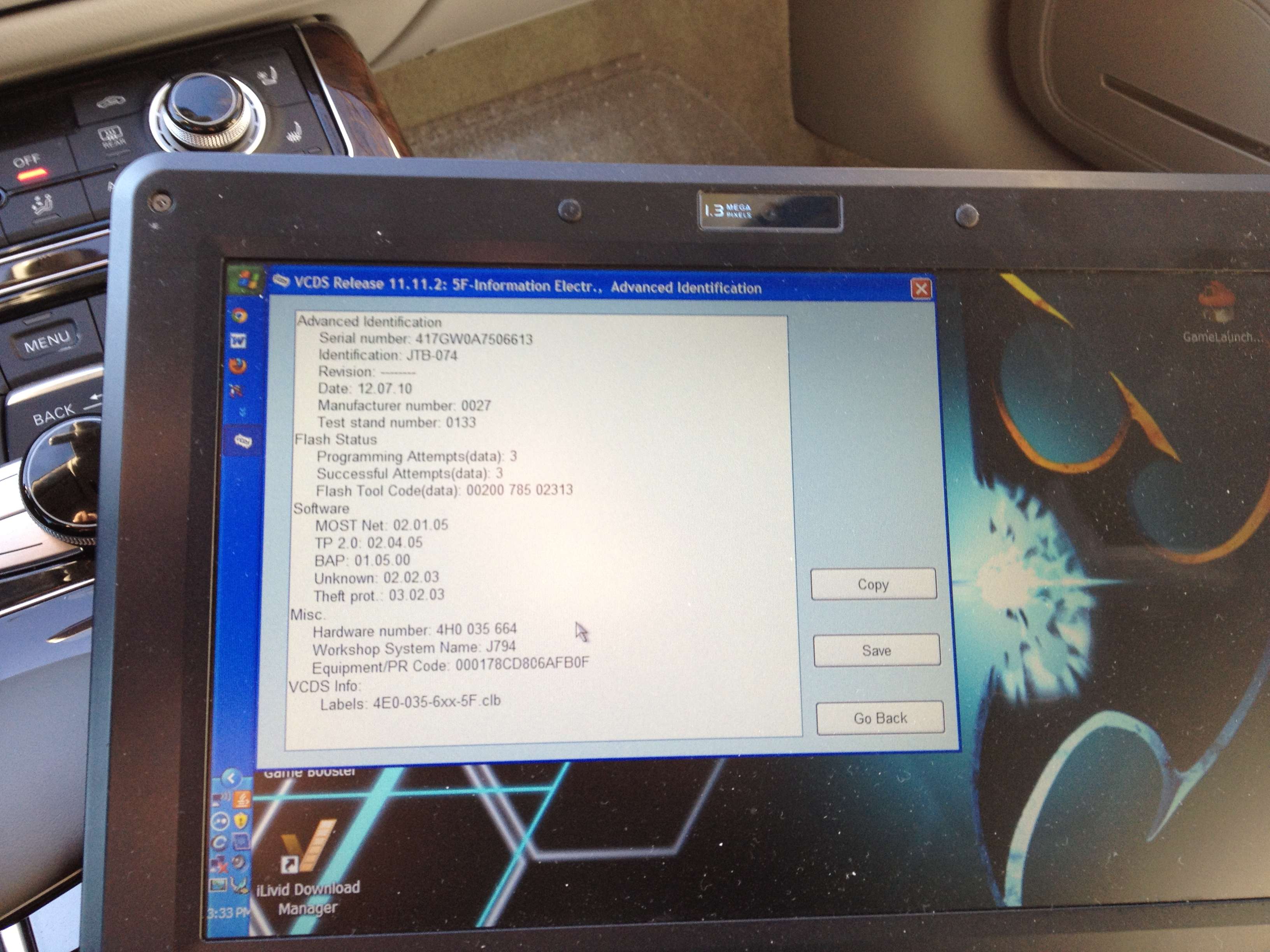
Now enter the serial number into the submission field on the trick77 page above and click "Submit Query". The page will return with a personal login code. Mine also had an alternate login code as well.
Select "Go Back" on the Advanced Identification screen.
Select Security Access - 16
Enter the 5 digit personal login code as the security access key.
Click "Do It!"
If the security code is not accepted, try the alternate login code as well. If your code is accepted, then
Select Adaptation - 10
Click on the box under Channel, type 48, then click "Read"
You will see a screen like this
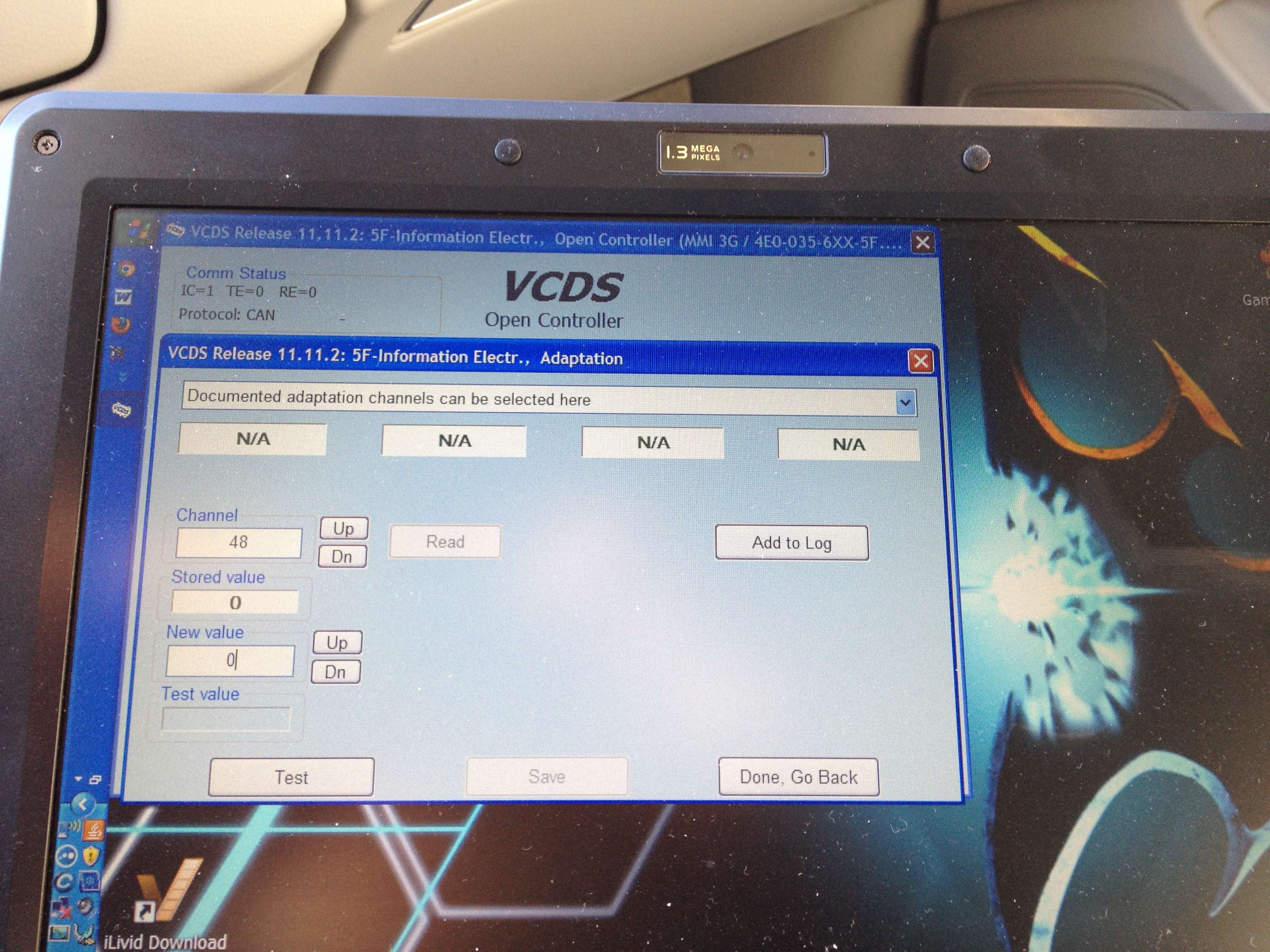
Type in 255 as the New value and click "Test"
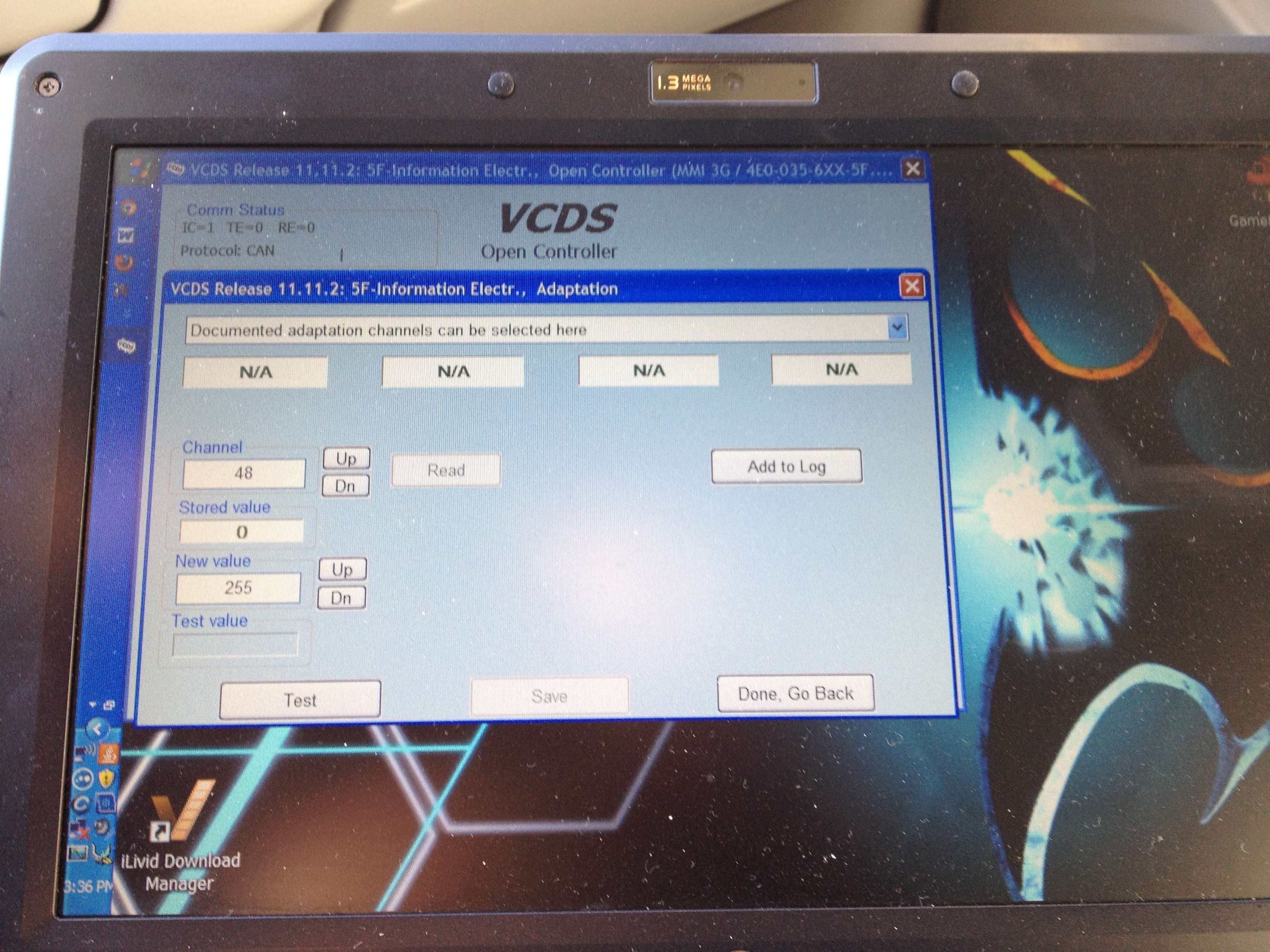
You will see a confirmation screen like this. Click Yes.
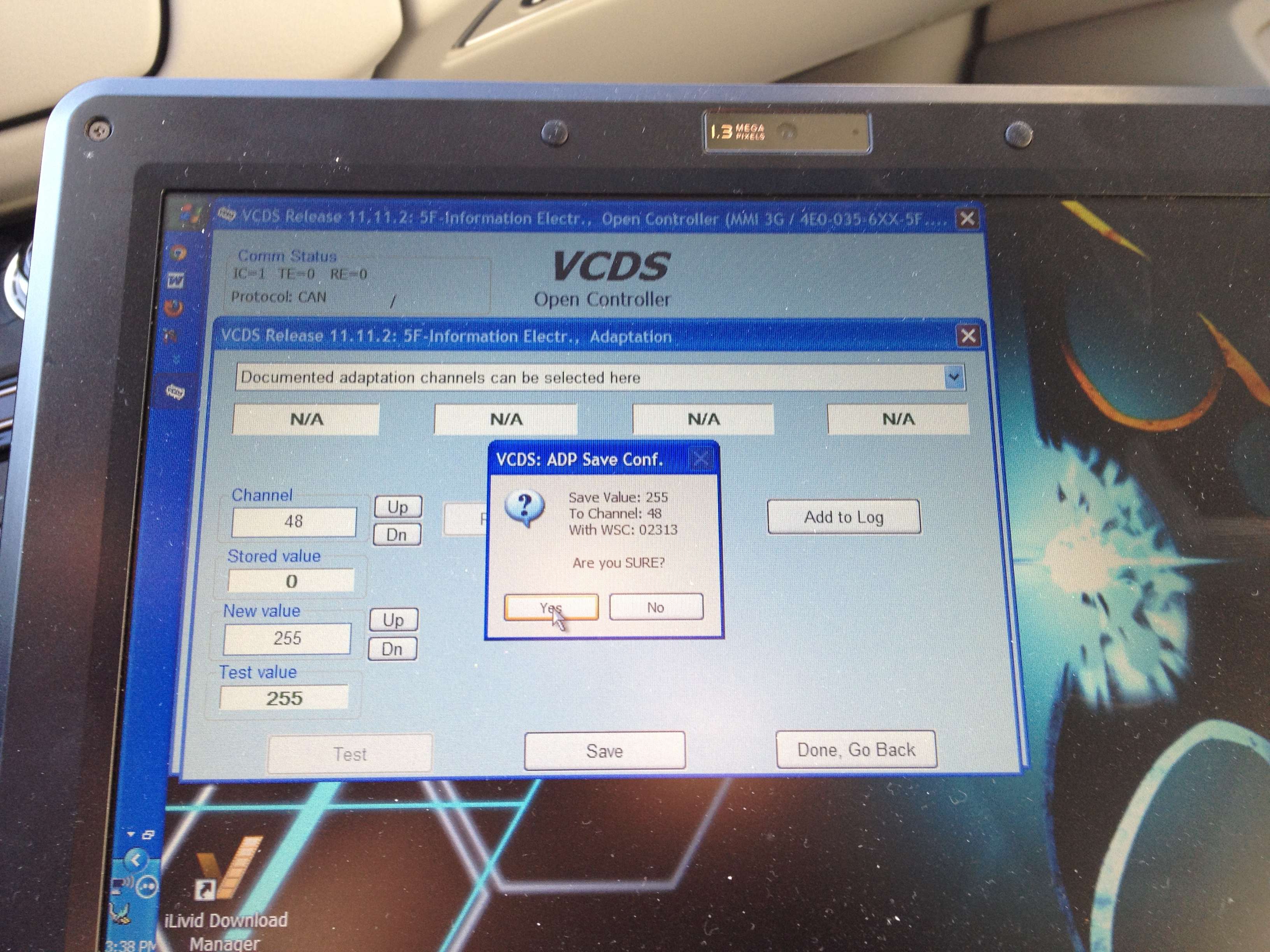
Click "Save"
Click "Done. Go Back"
Click "Close Controller. Go Back - 06"
Click "Go Back"
Click "Exit" to quit the software.
Reboot the MMI by simultaneously pressing Control **** + upper right soft button + Tone button.
That is all there is to it. You now have Video in Motion.
WARNING - I DO NOT TAKE RESPONSIBILITY FOR ANY MODIFICATIONS YOU MAKE TO YOUR OWN VEHICLE. PLEASE PROCEED AT YOUR OWN RISK.
The procedure is identical to what was outlined in the Trick77.com page for MMI 3G.
VIM for MMI 3G as posted on trick77.com
This mod is slightly more complicated then the other 2 mods listed earlier, but still pretty straight forward.
From the main VCDS Menu,
Select Select Control Module
Select 5F-Information Electr. under the Electronics 2 Tab at the top
Select Coding - Advanced ID - 1A
You will see a screen like this. Make note of your Serial number under Advanced Identification.
Now enter the serial number into the submission field on the trick77 page above and click "Submit Query". The page will return with a personal login code. Mine also had an alternate login code as well.
Select "Go Back" on the Advanced Identification screen.
Select Security Access - 16
Enter the 5 digit personal login code as the security access key.
Click "Do It!"
If the security code is not accepted, try the alternate login code as well. If your code is accepted, then
Select Adaptation - 10
Click on the box under Channel, type 48, then click "Read"
You will see a screen like this
Type in 255 as the New value and click "Test"
You will see a confirmation screen like this. Click Yes.
Click "Save"
Click "Done. Go Back"
Click "Close Controller. Go Back - 06"
Click "Go Back"
Click "Exit" to quit the software.
Reboot the MMI by simultaneously pressing Control **** + upper right soft button + Tone button.
That is all there is to it. You now have Video in Motion.
Last edited by xradman; Mar 24, 2013 at 07:45 PM.

AudiWorld Junior Member
Joined: Feb 2012
Posts: 42
Likes: 1
Thanks!
Thank you for the great writeups for performing the mods!
Can you please let me know if the system allows modification of the radio feature? Specifically, I would love to know if there is an option to always start the car with the radio OFF.
The fact that it is impossible to start the car with the radio off is the biggest annoyance I have with the A8.
Can you please let me know if the system allows modification of the radio feature? Specifically, I would love to know if there is an option to always start the car with the radio OFF.
The fact that it is impossible to start the car with the radio off is the biggest annoyance I have with the A8.

AudiWorld Member
Joined: Mar 2010
Posts: 161
Likes: 0
From: Miami, FL
Thanks X!
I had a lot of fun with VAG on my D3 A8 too. The problem now is I no longer have any windows computers to run the software to mod this one!
Speaking of video, do you have the entertainment pkg with the video screens in back? If not, how are you running video?
With my D4 A8, I tried a DVD once in the head unit and it wouldn't play.
I had a lot of fun with VAG on my D3 A8 too. The problem now is I no longer have any windows computers to run the software to mod this one!
Speaking of video, do you have the entertainment pkg with the video screens in back? If not, how are you running video?
With my D4 A8, I tried a DVD once in the head unit and it wouldn't play.
Thread Starter
AudiWorld Member
Joined: Dec 2011
Posts: 278
Likes: 2
From: Northern VA
Thanks X!
I had a lot of fun with VAG on my D3 A8 too. The problem now is I no longer have any windows computers to run the software to mod this one!
Speaking of video, do you have the entertainment pkg with the video screens in back? If not, how are you running video?
With my D4 A8, I tried a DVD once in the head unit and it wouldn't play.
I had a lot of fun with VAG on my D3 A8 too. The problem now is I no longer have any windows computers to run the software to mod this one!
Speaking of video, do you have the entertainment pkg with the video screens in back? If not, how are you running video?
With my D4 A8, I tried a DVD once in the head unit and it wouldn't play.
Trending Topics
AudiWorld Junior Member
Joined: Feb 2012
Posts: 42
Likes: 1
Thank you xradman
@xradman -
Just wanted to say thanks again for the detailed instructions. They helped me get going with the interface instantly, and saved me a ton of trial-and-error.
I was unable to reboot the MMI, but it seems that the DVD-in-motion took hold anyway.
I pressed and held Tel + Control **** + Upper-right Soft Button (and a thousand other button-press possibilities) and it just wouldn't reboot. The software doesn't seem to have a reboot feature either.
Is there something special you have to do to get it to reboot?
Just wanted to say thanks again for the detailed instructions. They helped me get going with the interface instantly, and saved me a ton of trial-and-error.
I was unable to reboot the MMI, but it seems that the DVD-in-motion took hold anyway.
I pressed and held Tel + Control **** + Upper-right Soft Button (and a thousand other button-press possibilities) and it just wouldn't reboot. The software doesn't seem to have a reboot feature either.
Is there something special you have to do to get it to reboot?
AudiWorld Stories
Bringing Audi to Life for Audi Fans

Top 10 Most Expensive Audis Ever Sold on Bring-A-Trailer
Brett Foote
10 Audi Features & Options We Miss the Most!
Joe Kucinski
Audi Recreates Crazy-Looking Speed Record Breaker From 1935
Verdad Gallardo
Coachbuilder Recreates the 1995 Audi TTS Concept
Verdad Gallardo
Every Audi V10 Car Ranked!
Joe Kucinski
9 Audi Designs That Aged Like Fine Wine
Verdad Gallardo
2026 Audi Q5 Buyer's Guide (Every Model Explained)
Brett Foote
Ranking Every Current Audi 'S' Model From Worst to First!
Joe Kucinski
10 Best Audis That are FINALLY LEGAL to Import to the U.S.!
Joe Kucinski
Thread Starter
AudiWorld Member
Joined: Dec 2011
Posts: 278
Likes: 2
From: Northern VA
@xradman -
Just wanted to say thanks again for the detailed instructions. They helped me get going with the interface instantly, and saved me a ton of trial-and-error.
I was unable to reboot the MMI, but it seems that the DVD-in-motion took hold anyway.
I pressed and held Tel + Control **** + Upper-right Soft Button (and a thousand other button-press possibilities) and it just wouldn't reboot. The software doesn't seem to have a reboot feature either.
Is there something special you have to do to get it to reboot?
Just wanted to say thanks again for the detailed instructions. They helped me get going with the interface instantly, and saved me a ton of trial-and-error.
I was unable to reboot the MMI, but it seems that the DVD-in-motion took hold anyway.
I pressed and held Tel + Control **** + Upper-right Soft Button (and a thousand other button-press possibilities) and it just wouldn't reboot. The software doesn't seem to have a reboot feature either.
Is there something special you have to do to get it to reboot?